
10 Best Mem AI Alternatives in 2026
Mem AI is shutting down. Compare 10 alternatives, including Luckynote, Obsidian, and Notion, with prices, migration options, and tips for moving your notes.
 Uros

Mem AI becomes read-only on December 18, 2026 and shuts down on January 15, 2027. Export your notes before the shutdown, even if you’re still choosing a replacement. Mem’s shutdown announcement · Official export instructions
Best choices by workflow
- Luckynote for personal knowledge capture in a self-organizing inbox. Try Luckynote free.
- Obsidian for local Markdown notes and a browsable copy of your archive.
- Notion for a team wiki or structured workspace.
- mymind for visual bookmarks and inspiration.
- NotebookLM for asking questions across a project’s sources.
- ClickUp for managing team projects, tasks, and shared docs.





We make Luckynote. It’s our pick if you used Mem to capture notes, links, files, and voice messages quickly, let the app help organize them, and search by a detail you remember.
How we compared these apps
We started with the destinations in Mem’s migration guide, then added Luckynote, mymind, and NotebookLM to cover personal capture, visual organization, and research. We looked at what each app captures, how it organizes and retrieves notes, what it costs, and how it handles Mem exports. We reviewed official product, pricing, and migration documentation for this comparison. We did not run hands-on migration tests in each app. Pricing and features were checked on November 17, 2026.
Best Mem AI alternatives at a glance
| App | Best fit | Mem migration and platform | Free plan and starting price |
|---|---|---|---|
| Luckynote | A self-organizing inbox with AI search and media transcripts | Copy selected notes and upload files on web, iOS, or Android | Free plan. Plus costs $7.99/month or $59.99/year at standard rates |
| Apple Notes | Everyday notes across Apple devices | Import Mem’s ENEX file in Notes on a Mac | Included with Apple devices. Optional iCloud+ storage from $0.99/month |
| Obsidian | A local Markdown library | Open the extracted Mem folder as a vault on Mac or Windows | Free app. Optional Sync from $4/user/month, billed annually |
| Notion | Shared projects and team documentation | Send pages to Notion or import a ZIP on web or desktop | Free plan. Plus from $10/member/month, billed annually |
| Google Docs or Drive | Shared documents or a file archive | Send editable notes to Docs or upload the extracted folder in Drive on the web | Free with a Google account. Workspace Business Starter from $7/user/month with an annual commitment |
| Microsoft OneNote | A notebook with sections and pages | Connect your Microsoft account from Mem’s export screen on a computer | Free app. Optional Microsoft 365 subscription for premium features |
| Bear | Markdown writing and nested tags | Import an ENEX file or extracted Markdown folder in Bear on Mac | Free core app. Bear Pro is $2.99/month for new subscriptions until November 24, 2026, then $3.99/month |
| Evernote | Web clips and searchable attachments | Import an ENEX file in Evernote on Mac or Windows | Free plan with limits. Check current Starter and Advanced pricing |
| mymind | Visual bookmarks and inspiration | Save selected items by hand on web, iOS, or Android | Student of Life at $7.99/month |
| NotebookLM | Research and cited answers from a project’s sources | Add selected Markdown files or PDFs as sources on the web | Free standard access. Higher limits with Google AI Plus from $7.99/month in the U.S. |




Prices checked November 17, 2026, in U.S. dollars where shown. Regional prices and promotions may vary.
1. Luckynote for a self-organizing inbox
Luckynote is the best fit in this list if what you want to keep from Mem is the habit of saving first, organizing later, and asking for something back when you need it. Here’s how the workflows line up.
| What you did in Mem | How it works in Luckynote |
|---|---|
| Capture without filing | Save a note, link, screenshot, or file from the web clipper or mobile share sheet. Where email forwarding is enabled, forward emails and supported attachments to your personal Luckynote Inbox address. |
| Let the app suggest where things belong | Mem suggested Collections. Luckynote can suggest folders for eligible Inbox saves, and you can enable nightly AI organization in Settings. Stacks automatically group saves by type, so you can browse PDFs, videos, links, or voice notes without sorting each one yourself. |
| Save from your messages | Send supported messages or media from WhatsApp or Telegram. The Slack integration supports saving through the Luckynote bot and sending selected saves back to Slack. |
| Capture a thought by voice | Record a voice note or save supported audio and use its transcript to find what you said later. Mem also offered live meeting features, so check your meeting workflow separately if you depended on those. |
| Ask questions or automate | Search in plain language and bring saved material into AI chat. Use the API for scripts, the CLI to search and save from a terminal, or MCP to connect your library to tools such as ChatGPT and Claude. |
Mem’s overview of Collections and its assistant · Luckynote’s Inbox, integrations, and media updates · Luckynote CLI and MCP
What a day in the Luckynote Inbox looks like
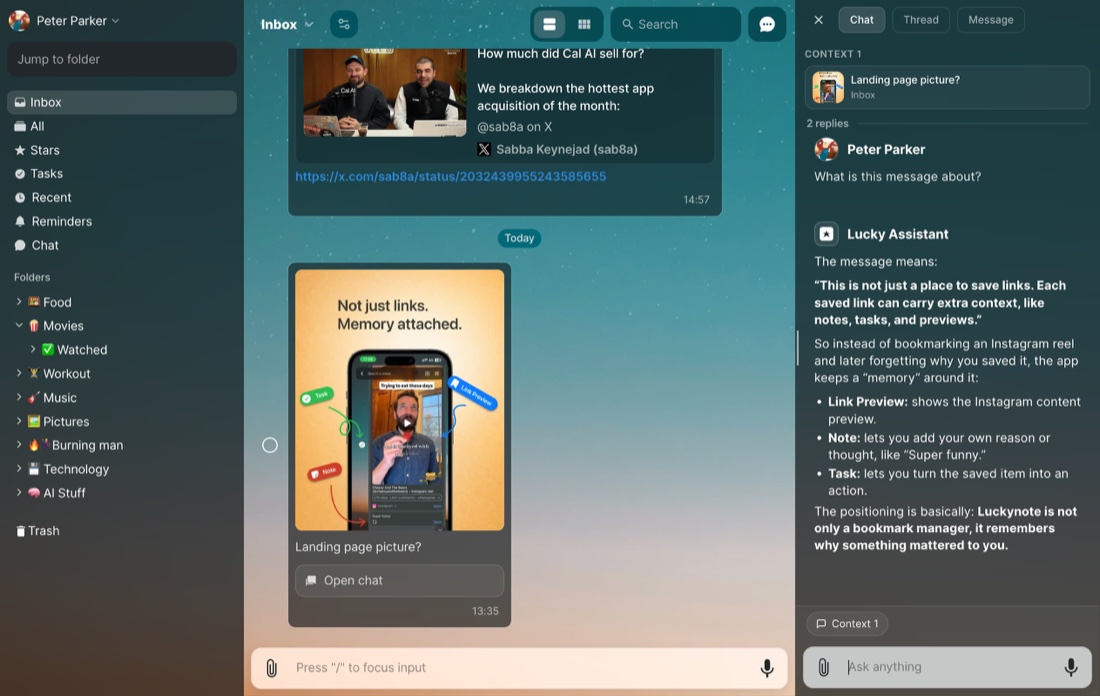
Say you’re arranging a supplier visit. Forward the confirmation email into Inbox where forwarding is enabled, then record a quick voice note about asking for a sample. You can review a folder suggestion for an eligible save or browse by content type in Stacks. Later, search for a detail you remember, such as the supplier’s name or “sample before Friday,” to get back to the original material.
Where Luckynote goes further for saved media
Luckynote can turn supported YouTube videos, Instagram Reels, and TikToks you save into transcripts. For example, save a YouTube tutorial and an Instagram Reel on the same topic, transcribe them, and look up the step you remember alongside your own notes. Luckynote also makes text inside screenshots searchable. When Library analysis is enabled, supported saves can surface individual recommendations such as a recipe or a place, with a link back to the original save. Luckynote’s transcription and Library updates · Search across what you save.
Moving notes from Mem is manual. Keep your ZIP, bring over one active project, and try the habits you want to keep. Forward an email, save a voice note, and check whether you can find both a few days later. Follow the Mem-to-Luckynote migration guide · See how Luckynote captures and finds notes.
2. Apple Notes for everyday notes on Apple devices
Watch Apple Support scan a document into Notes
Why choose it. If you already use a Mac, iPhone, or iPad, Apple Notes is a straightforward home for personal notes. Tags and Smart Folders can pull together notes that match rules you set. For example, create a Smart Folder for notes tagged Travel that contain checklists, then keep each note in its original folder. This works best when you know which tags or rules you want to use. Apple’s Smart Folders guide.
Moving from Mem. Export for Apple Notes and import the ENEX file in Notes on your Mac. Choose your iCloud account if you want the notes on your other Apple devices. Check how collection names appear and whether links between notes still work. Mem’s Apple Notes guide.
3. Obsidian for local Markdown and connected research
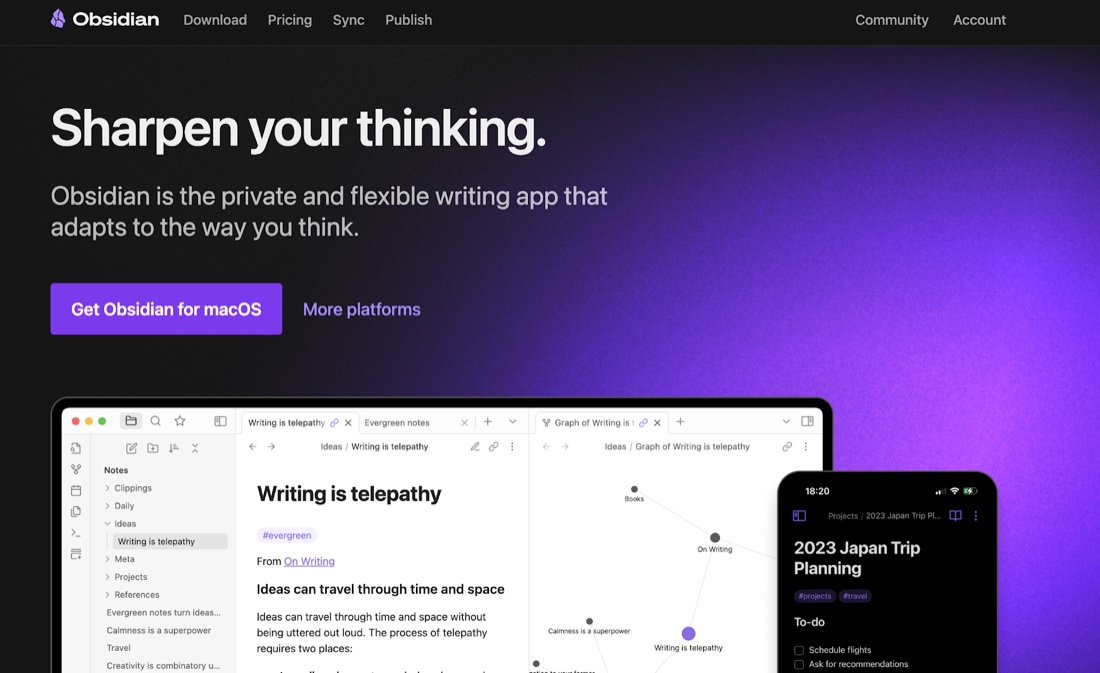
Explore Obsidian’s illustrated graph guide
Why choose it. Obsidian keeps your notes as Markdown files in a local folder. Backlinks let you see which notes refer to the one you’re reading. If you’re moving years of research, you can link a new summary to the source notes and follow references as you write. For access across devices, you’ll need to set up a sync method. Obsidian’s file storage guide · Backlinks · Sync options.
Moving from Mem. Open the entire extracted export as a vault so the notes, collection indexes, and attachments stay together. Try a collection link and an embedded image before reorganizing. Mem’s Obsidian guide · Compare Obsidian and Luckynote.
4. Notion for a team wiki or project database
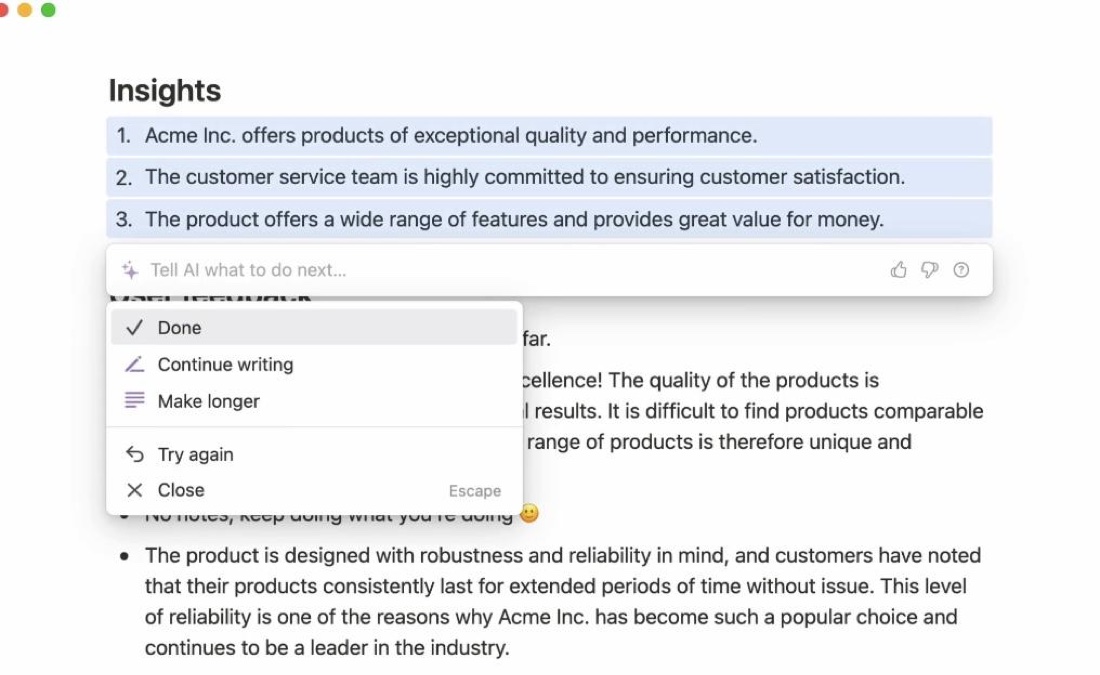
Image via ClickUp · Explore Notion’s database views
Why choose it. Notion works well when several people need a shared structure for their notes. A team could add an owner and status to each project note, then show the same database as a Kanban board for weekly planning and a table for looking up decisions. The benefit comes from deciding together which properties and views are worth maintaining. Notion’s guide to database views.
Moving from Mem. Send pages directly from Mem or import its ZIP using Notion’s text and Markdown importer. Pick one method per batch to avoid duplicates. Imported collection indexes can help you find pages while you decide which ones belong in a database. Mem’s Notion guide.
5. Google Docs or Drive for shared documents or file storage
Watch Google Workspace demonstrate suggested edits in Docs
Why choose it. Google Docs is a practical choice when the next step is to edit a document with someone else. A project brief can start as an old Mem note and become a shared draft with suggested edits. Drive is a better fit when you mostly need a copy of the original files. Google Workspace’s suggested edits video.
Moving from Mem. Use Mem’s Google Docs export for editable documents. For an archive, upload the whole extracted folder to Drive so the Markdown files, collection indexes, and attachments stay together. Open a familiar document and follow an attachment link before relying on the new copy. Mem’s Google Docs and Drive guide.
6. OneNote for a notebook with sections and pages
Watch Microsoft demonstrate OneNote’s notebook structure
Why choose it. OneNote suits people who already navigate their work as notebooks, sections, and pages. You might group client notes in one notebook, make a section for each client, then give each meeting its own page. Page links let you add a table of contents for the decisions you revisit. Microsoft’s OneNote organization guide and video.
Moving from Mem. Connect the intended Microsoft account from Mem’s export screen. Large transfers can span several sections, so open the export summary to see which pages or attachments need a closer look. Mem’s OneNote guide.
7. Bear for Markdown writing and nested tags
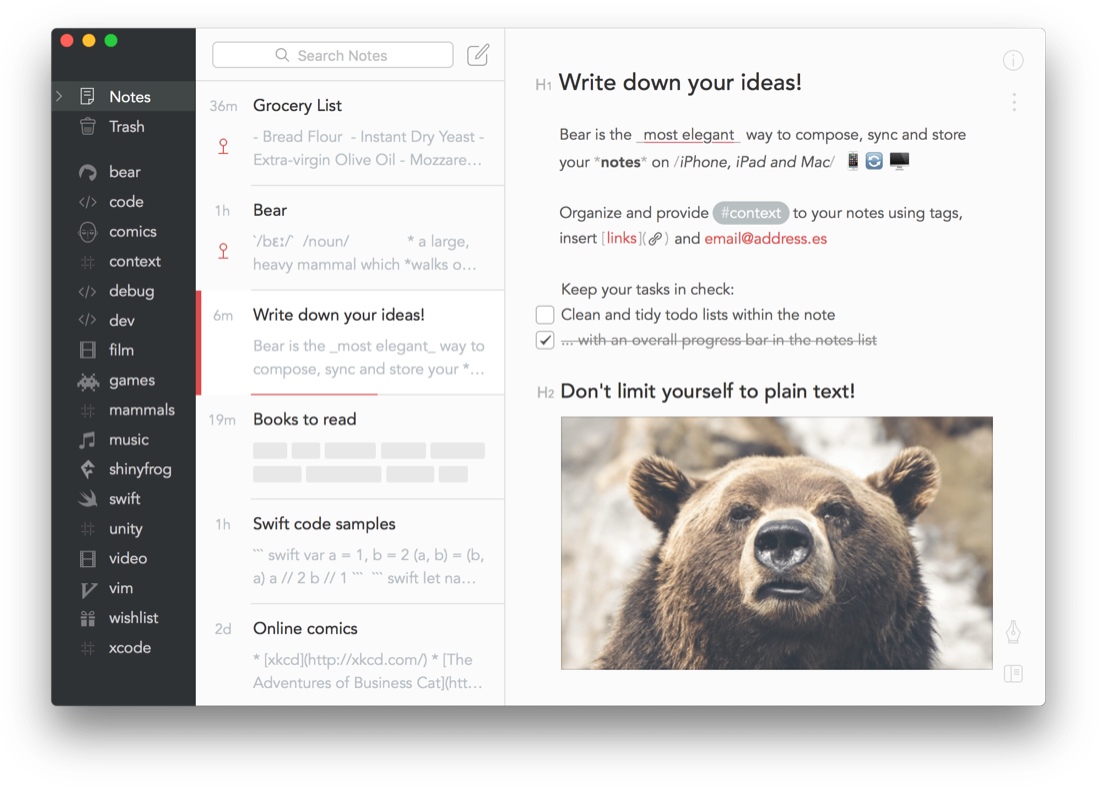
Image via Capterra · Watch the official Bear 2 demo · See Bear’s screenshots of nested tags
Why choose it. Bear is a fit if you write on Apple devices and prefer adding tags as you go. A note can use both a nested tag such as projects/website and a draft tag, so it’s easy to find by project or writing stage. Markdown formatting and links between notes make it useful for writing and revisiting longer drafts. Bear’s illustrated tag guide · Bear’s Markdown guide.
Moving from Mem. In Bear on Mac, use the Evernote importer for Mem’s ENEX file. If you downloaded the Markdown ZIP, extract it and import the folder containing your notes and attachments. Check the resulting tags on a note that belonged to more than one Mem Collection. Mem’s Bear migration instructions.
8. Evernote for web clips and searchable attachments
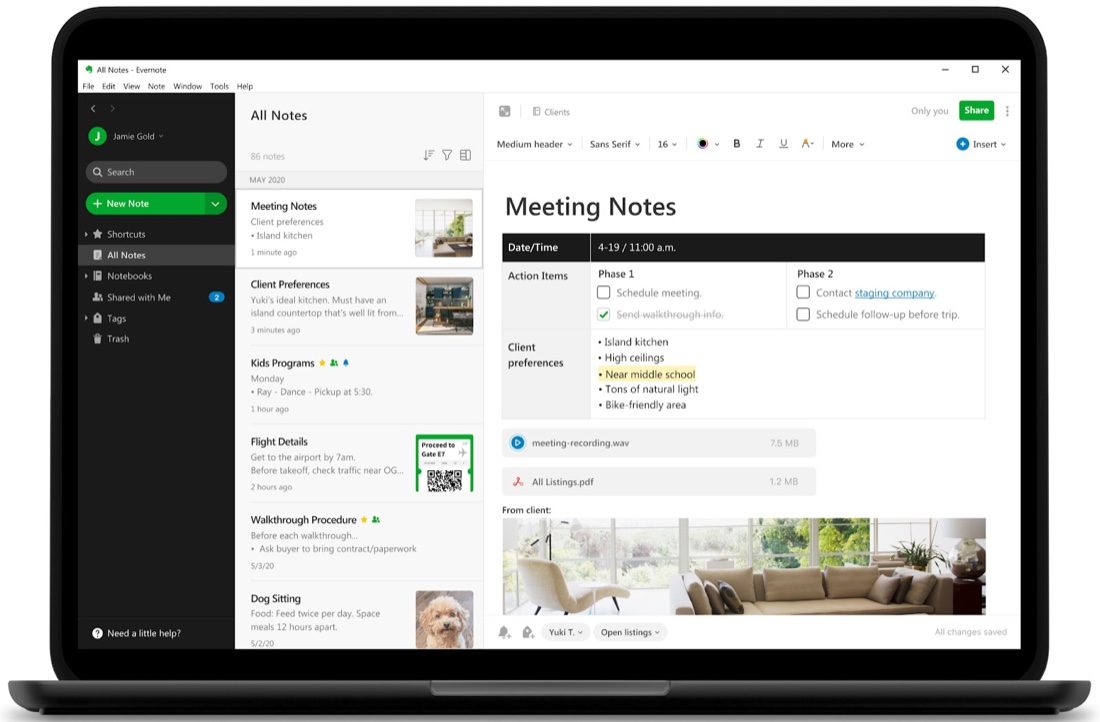
Image via ClickUp · See Evernote’s Web Clipper in action
Why choose it. Evernote is a strong fit if your notes are mostly reference material, such as PDFs, scans, and web articles. Its Web Clipper can save articles or simplified versions and suggest a notebook or tag for new clips. Search can find text inside supported documents and images. Try the same PDF or scan you reach for in Mem to see whether the result is easy to find. Evernote’s Web Clipper guide · Evernote’s search guide.
Moving from Mem. Import Mem’s ENEX file in Evernote for Mac or Windows. Check tags and attachments in the imported notebook before moving notes into your existing setup. Mem’s Evernote migration instructions.
9. mymind for visual bookmarks and inspiration
Watch mymind organize saves without folders
Why choose it. mymind is a close fit if the part of Mem you liked was collecting things without filing them. Its visual library makes it easy to skim images, articles, and bookmarks. Automatic tags help you find saves later, and Smart Spaces show items that match a search you’ve set up. For a design project, you could save references as you browse and use a Smart Space to bring the relevant cards together. mymind’s guide to tags, search, and Spaces.
Moving from Mem. mymind’s FAQ says it has no mass import. Keep your Mem ZIP and move a selection of useful links, images, PDFs, and notes by hand. It makes the most sense if the archive is mostly visual reference material you want to browse again. mymind’s import FAQ.
10. NotebookLM for asking questions across sources
Watch Google’s Video Overviews demo
Why choose it. NotebookLM works well when you have a set of notes and documents about one question. Add interviews and a research brief to a notebook, then ask what themes they share and follow citations back to the sources. Audio and Video Overviews give you another way to review the material. Luckynote’s inbox is a closer fit when you’re continuously saving across unrelated projects. Google’s guide to NotebookLM’s source-based workflow · Studio and Video Overviews.
Moving from Mem. Extract the ZIP and upload selected Markdown files or PDFs as sources in a notebook. Keep your original files and collection indexes for browsing the full archive. Start with one project and check whether the answers cite the right notes. Google’s supported source formats.
What about ClickUp?
ClickUp is worth considering if Mem held your team’s project plans and action items. It brings tasks, assignees, shared docs, and discussion into the same workspace, so a project brief can sit alongside the work it describes. Luckynote is a better fit when your day starts with personal capture from email, voice notes, and links that you need to find again later. ClickUp also appears in G2’s roundup of Mem alternatives. ClickUp’s product features · G2’s Mem alternatives list
How to migrate from Mem AI before the shutdown
- On a computer, open Mem’s export settings, start a new export, and choose My Computer. Include audio recordings if you need the original sound. Download and keep the ZIP before January 15, 2027.
- Extract the ZIP. Check a Markdown note, an attachment, and an important meeting transcript or recording. Look for an export report and keep the notes, collection indexes, and attachments together so relative links still work.
- Test one project in your new app. Use the destination’s export format if it needs one, such as ENEX for Apple Notes. In Luckynote, copy the notes you need and upload their files. Check how the new app handles links between notes, Collections, and attachments before moving more. Mem’s export guide · Step-by-step move to Luckynote.
Choose the export for your destination. Use the Markdown ZIP as your local backup and to open the archive in Obsidian. Mem offers ENEX for Apple Notes, Bear, and Evernote, can send pages directly to Notion, and can transfer to Google Docs or OneNote when you connect an account. Luckynote and mymind use a manual move. In NotebookLM, upload a selection of Markdown files or PDFs as sources. After moving, search for a known phrase, open an attachment, and follow an internal note link. Mem’s destination guides
How to choose before Mem closes
Test the same three notes in your shortlist. Pick a note you need to find by a phrase, a note with an attachment, and a meeting note with a transcript or recording. Check whether search finds the first, the file opens in the second, and the meeting material you need made it into the third. Keep the original ZIP after you switch.
If quick capture and search are the parts of Mem you want to keep, start a free Luckynote account and move one project. If you need your complete library available as local Markdown first, open the export in Obsidian and keep that archive alongside whichever app you use for new notes.
Questions about switching from Mem
What is the best Mem AI alternative for personal notes?
Luckynote is our pick if you want to save notes and media as they come in, browse by type, get folder suggestions, and search by what you remember. Evernote’s smart filing is worth a look if your main concern is sorting web clips.
Which app is easiest for keeping a complete local copy?
Start with Obsidian. You can open the exported folder as a vault and keep working with the original Markdown files. Check the export report and spot-check your notes, attachments, and linked files before relying on the archive. Mem’s guide to saving a copy.
Can I export all my Mem AI notes?
Request a library export in Mem and keep the ZIP locally. Check the export report for anything Mem couldn’t include. Available transcripts are included by default, and original meeting audio is a separate export option. Mem’s guide to the export contents.
Which Mem AI alternatives support AI search?
Luckynote searches across saved notes and supported media in plain language. NotebookLM answers questions with citations from the sources in a notebook. Evernote also offers semantic search for finding notes by meaning. Luckynote AI search · Google’s NotebookLM overview · Evernote’s search guide.
Which apps can import Mem’s ENEX export?
Apple Notes and Bear can import it on a Mac. Evernote can import it on Mac or Windows. Check tags, attachments, and links between notes after importing. Mem’s Apple Notes guide · Mem’s Bear and Evernote guide.
Is there a free Mem AI replacement?
Luckynote has a Free plan if you want to test capture and search. Obsidian’s core app is free if you want to keep working with local Markdown files. NotebookLM offers free standard access for working with a set of sources. Luckynote pricing · Obsidian pricing · NotebookLM plan information.
What happens to my notes after January 15, 2027?
Mem says you’ll lose access to the service, including the ability to export your notes. Download the archive before January 15 and open a few important files while you can still compare them with the originals. Mem’s shutdown announcement.
Is Mem AI shutting down?
Yes. Mem becomes read-only on December 18, 2026 and closes on January 15, 2027. Export before January 15. Mem’s announcement.
Can I move Mem notes into Luckynote?
Yes. Download the Mem ZIP, open the notes you want to keep using, and copy them into Luckynote. Upload their attachments separately. Move your notes to Luckynote.
Is ClickUp a good replacement for Mem AI?
ClickUp is a good option if your notes need to become assigned tasks, shared docs, or team project plans. For a personal inbox that brings together notes, links, screenshots, and voice notes, try Luckynote. ClickUp’s features.