New features, thoughtful improvements, and fixes from Luckynote.
Latest
Daily Review turns saved notes into a recap
Luckynote can now generate a day-by-day AI recap of what you saved, with both an in-app review feed and optional digest emails.
Open a new Daily Review page to read AI-written summaries of what you saved each day, and optionally receive the recap by email.
Daily reviews group saved material by day so it is easier to revisit what you captured without manually retracing folders and threads.
Review emails can be enabled separately, and email opt-out links now leave the in-app review history available.
Smarter saving, quotes, and reading views
Saving links and reading saved material now preserves more context, handles duplicates better, and keeps highlights visually connected.
Save multiple messages in one request while skipping or bumping duplicates more reliably.
Quoted links and saved articles render more cleanly, including richer markdown formatting and clearer preview layouts.
Highlights now keep their color through linked quote messages, making related context easier to recognize at a glance.
URL previews, article views, and quoted metadata handle media, markdown, and link actions more consistently.
Search and workflow polish
A set of smaller improvements makes search results more precise and everyday actions across messages, boards, and transcription flows less brittle.
Search is more accurate for exact phrases, descriptions, and highlighted matches, while AI chat prompts and replies stay out of default search results.
Transcription confirmations and delete messaging are clearer when actions affect larger sets of notes or thread replies.
Board polish, folder ordering, and several media and URL preview flows are smoother and more predictable.
Mobile reliability and polish
The mobile app now delivers more reliable downloads, smoother media workflows, and more consistent navigation across message screens.
More reliable file downloads, smoother previews, and clearer quick actions on mobile.
File downloads and opening shared content work more reliably.
Transcription, media previews, and quick file actions are smoother and clearer.
Search results and folder views are more accurate after moving messages.
Message input, back handling, and bottom-sheet flows feel more stable.
Reply/edit flows and message actions are more consistent across screens.
Multiple UI fixes improve spacing, previews, progress feedback, and general responsiveness.
Smoother, safer app updates
Luckynote now makes new versions easier to discover and reduces stale-version problems after a deployment.
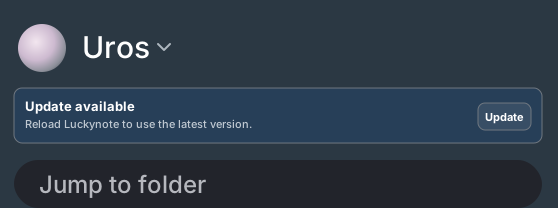
New versions remain visible in the sidebar until you choose to update.
A persistent update notice appears in the sidebar when a new version is ready.
The update notice can take you directly to the latest release notes.
App pages and the service worker now refresh reliably while versioned assets remain efficiently cached.
Missing old app files return a clear response instead of being mistaken for executable JavaScript.
Your workspace, your view
A broad workspace update makes it faster to move between folders and shape how every collection of messages looks.
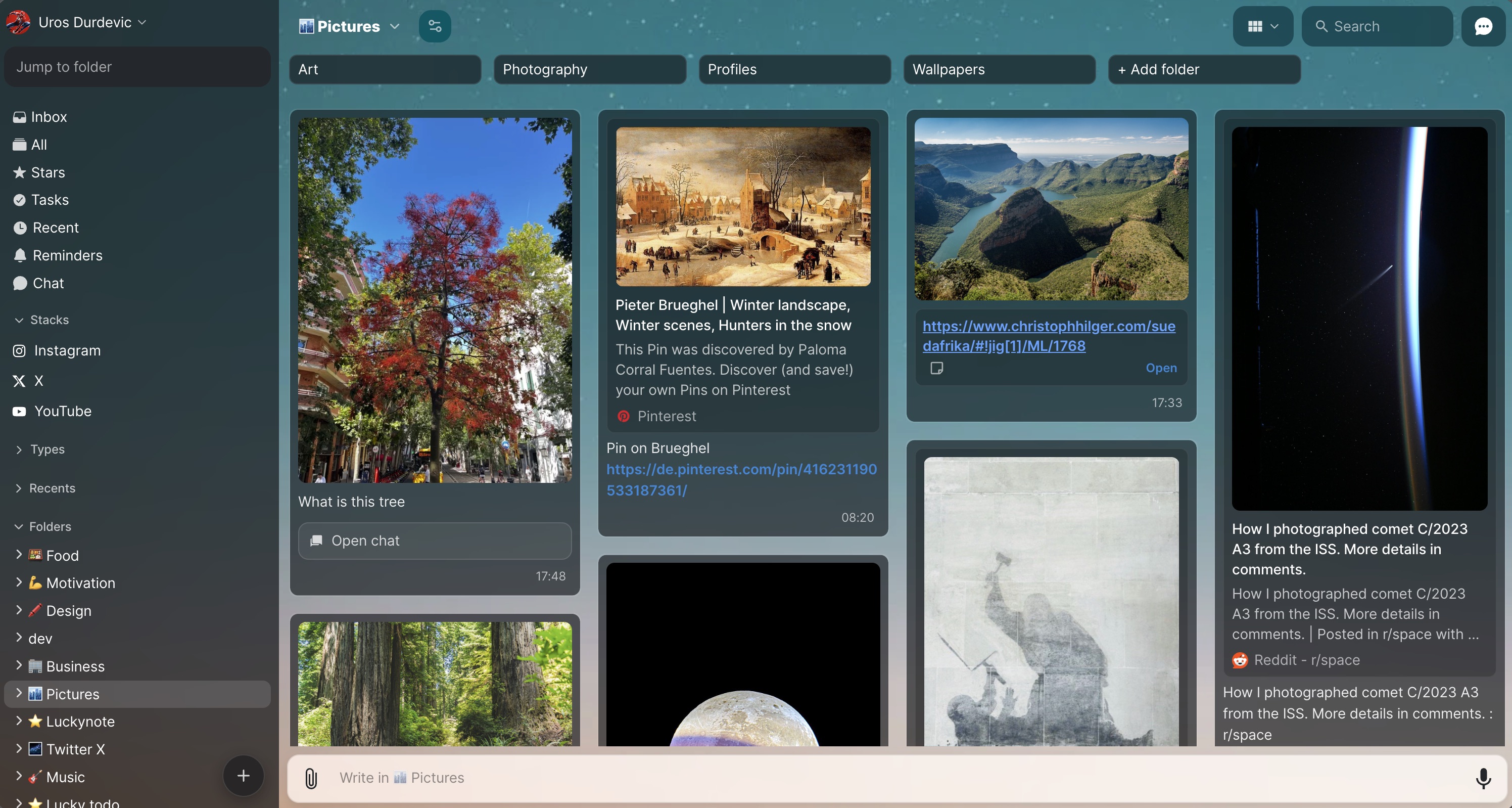
Masonry view turns mixed notes, images, and saved links into a visual workspace.
Switch between Chat, List, Masonry, and Board views where available.
Choose card size and which fields appear, including images, files, titles, text, URL previews, types, extensions, and tags.
Browse sortable Stacks and Types for content such as PDFs, voice notes, videos, links, images, tasks, and threads.
Jump back into recent folders, create folders with an emoji, and reorder navigation to match your workflow.
Jump directly to a date in a long message history.
Preview PDFs more clearly and open or download saved media from a consistent file menu.
Luckynote understands more of what you save
Saved content can now surface recognizable people, places, media, products, and other useful entities directly on messages.
Messages can display compact badges for books, movies, TV shows, articles, products, events, recipes, places, apps, music, podcasts, tutorials, and more.
Open an entity from a message or use it to start a focused search.
Movie and TV mentions can include a poster, release year, description, and external reference.
Entity details update in real time as Luckynote finishes analyzing newly saved content.
Image-based notes, including HEIC uploads, can contribute to entity recognition.
Faster thread and upload workflows
Moving content into conversations, attaching files, and correcting thread organization now require fewer steps.
Drag messages directly into chat and thread sections using clear drop targets.
Detach a thread message and return it to the main message list.
Drop files into the upload preview before sending and review them in a cleaner attachment layout.
Attach files and images more smoothly while working inside a thread.
Expand long links only when needed, while keeping compact messages easy to scan.
Large raw web clips fall back to readable plain text instead of overwhelming the note preview.
Turn audio and video into useful notes
Transcription is now a first-class action for voice notes, uploaded audio, supported video links, and AI conversations.
Transcribe an audio message into plain text or create a summary with the full transcript below it.
See clear processing status while longer transcription jobs continue in the background.
Extract transcripts from supported YouTube links directly into the saved note.
Use a recorded voice note as text context before sending it into AI chat.
Audio keeps a readable display name while Luckynote manages the underlying stored file safely.
AI chat keeps more context and loses fewer replies
AI conversations are more durable and can make better use of the files, images, links, and messages you reference.
AI replies are saved on the server so they can survive a temporary disconnect or closed browser.
Referenced images and files can be included as real model context when the selected model supports them.
URL metadata and resolved images provide richer context for questions about saved links.
Conversation turns stay in a simpler chronological structure under the original message.
OpenAI file-backed attachments are available again for supported chat models.
Restore past messages and act on reminders
Important edits are easier to recover, and reminders now leave behind something actionable.
Open version history for supported messages, preview an earlier version, and restore it when needed.
Version previews can include message text, metadata, images, and attachments.
A fired reminder creates a task so the follow-up remains visible after the notification.
Manually moving a message clears outdated AI folder suggestions.
Image preview and lightbox menus provide more consistent open, copy, download, and navigation actions.
Browser extension and mobile download links are easier to find from inside Luckynote.
More control over layouts and your account
Shared message views gained consistent layout controls, alongside a clearer and safer account deletion flow.
Use the same List, Masonry, and Board controls across shared views such as Stars, Tasks, Recent, reminders, and hierarchy.
Adjust masonry card size and keep the preferred layout for each view.
Copy multiple selected search results with the standard keyboard shortcut.
Delete your account through a confirmation flow and receive a clear completion screen.
Compact note previews remain open more reliably while using folder and search overlays.
Ask questions across an entire folder
Folder chat can retrieve relevant notes from a collection, giving AI a broader view than a single message or thread.
Open AI chat inside a folder and ask questions about the notes collected there.
Luckynote retrieves the most relevant folder content instead of sending every message blindly.
Continue a folder conversation without losing the retrieved context between replies.
Referenced messages remain connected to the answer so it is easier to trace where the information came from.
Turn any message into a reminder
Messages can now come back at the right time, with clearer scheduling, delivery options, and direct links to the original note.
Set a reminder from a message using quick dates or a custom date and time.
Add a short reminder message so the notification explains what needs attention.
Choose the appropriate delivery option and keep reminder times aligned with your timezone.
Browse upcoming reminders from a dedicated view.
Open notification and email links directly to the relevant folder and message.
Create reusable actions for AI chat
Frequently used prompts can become named slash actions, making repeatable AI workflows faster to run and easier to manage.
Type a slash command in chat to find and run an available action.
Create custom actions for recurring work such as summarizing, rewriting, extracting, or formatting.
Edit and delete personal actions from Settings.
Use actions with the current message, thread, or chat context instead of rebuilding the same prompt each time.
Bring documents into the conversation
PDFs and other supported documents can provide usable text context when you ask AI about a saved file.
Luckynote extracts readable text from supported documents in the background.
Ask questions in a document thread without manually copying the file contents into chat.
AI receives relevant chunks from the original document alongside the conversation.
Longer PDFs are processed more reliably and remain connected to their saved message.
Move notes between Luckynote, Slack, and Telegram
Connected messaging accounts make it easier to send useful notes and images where a conversation is already happening.
Connect Slack from the Integrations settings.
Send a saved Luckynote message to Slack or Telegram from its message menu.
Forward images together with the message text instead of sharing an incomplete note.
Use the Luckynote bots to capture supported incoming messages back into your workspace.
Write richer notes and choose the right AI model
The note editor became more capable, while AI chat gained a clearer model picker for different tasks.
Edit Markdown notes in a dedicated rich editing experience.
Preview headings, lists, links, code, quotes, and other Markdown more consistently.
Choose from the AI models available to your account directly inside chat.
Keep the selected model attached to the conversation so later replies use the intended provider.
Narrow search by source and exact phrase
Search gained more precise controls for finding a saved item when you remember where it came from or the wording it used.
Use domain chips to focus results on a specific website or source.
Match exact phrases more reliably when broad keyword search returns too much.
Combine text search with content stacks and other filters.
Keep source filtering strict so similarly named domains do not leak into the results.
Save more complete Reddit posts
Reddit links now preserve more of the original post, including gallery media and structured post data.
Display Reddit galleries with their available images instead of a single incomplete preview.
Resolve more Reddit share and shortened links before building the saved preview.
Use Reddit post images as input for supported AI analysis.
Download the structured Reddit post data when you need an archival copy.
Keep related work together with threads
Messages can become focused conversations that hold replies, files, tasks, and AI work without crowding the main folder.
Open a message as a thread and continue the conversation beneath the original note.
Attach existing messages to a thread and move content between the main list and conversation.
Filter folders by thread and conversation activity.
Edit, select, star, move, and manage thread messages with the same core actions used elsewhere.
Use the original message and selected references as context for AI replies inside the thread.
Preview PDFs and capture from Raycast
Documents became easier to recognize in a folder, and Mac users gained a faster keyboard-first path into Luckynote.
See a generated thumbnail for supported PDFs before opening the file.
Preview PDFs inside Luckynote instead of downloading every document first.
Use the Raycast extension to create a quick note or save a message.
Connect the extension to your Luckynote account for fast capture without opening the full app.
Extract media and transcripts from saved links
Supported video and social links gained tools for inspecting available media, downloading a useful format, and saving spoken content as text.
Inspect available video or audio formats for a supported saved link.
Choose media quality before starting an extraction or download.
Extract a transcript and keep it in a dedicated tab on the saved message.
Pull audio from an uploaded video and transcribe it.
Handle additional sources such as TikTok links through the same media tools workflow.
Search larger libraries without losing your place
A rebuilt search flow made full-text discovery and structured filtering more predictable as a Luckynote library grows.
Switch between full-text search and filter-based browsing.
Load additional results with stable paging instead of seeing repeated or skipped messages.
Search across recent content while combining text, type, and folder constraints.
Return to search results with fewer layout jumps and stale result states.
Let AI organize the notes waiting in your inbox
Luckynote can suggest destinations for new material and process pending organization work when the workspace is quiet.
Receive folder suggestions for supported new messages.
Review suggested destinations before deciding where a note belongs.
Move a message manually when you want to override the suggestion.
Enable nightly AI organization from your account settings.
Keep recently active inbox work from being reorganized while you are still using it.
Bring X bookmarks into Luckynote
The X integration can connect your account and turn bookmarked posts into searchable material in your workspace.
Connect an X account securely through the Integrations settings.
Import supported bookmarks without manually sharing each post.
Preserve useful post text, links, and media metadata in the saved message.
Disconnect the integration from Luckynote whenever you no longer want it linked.
Meet Luckynote AI and searchable transcripts
AI chat, writing actions, and audio transcription arrived together as tools for working directly with saved knowledge.
Chat with AI from inside Luckynote and keep the conversation alongside your notes.